
Quick answer
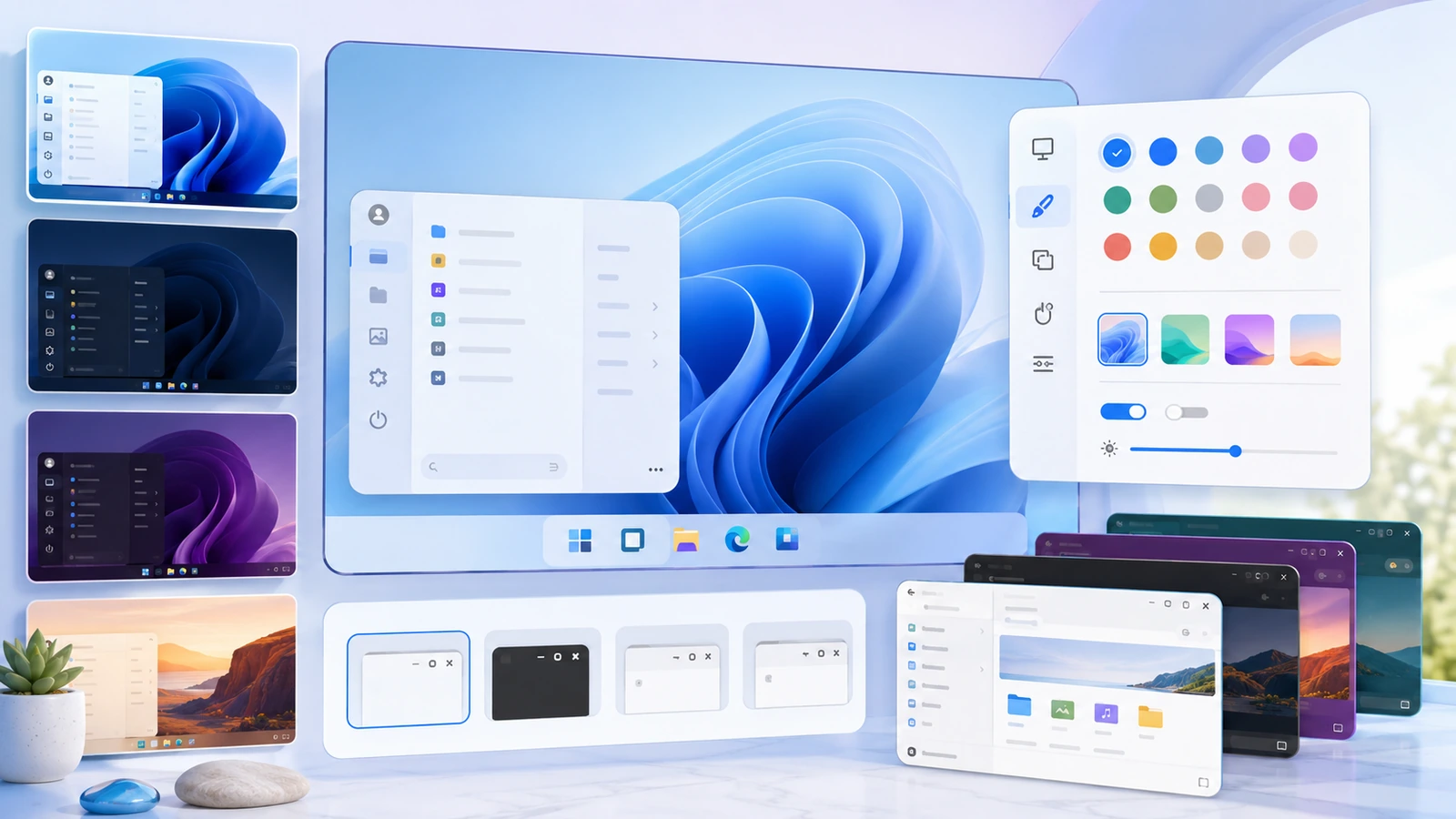
Build a StartAllBack theme around one coherent menu, taskbar, and Explorer style. Apply those components in stages and test contrast and everyday actions before adding third-party assets. A theme preview is not evidence that a particular Windows build is supported.
What matters for this task
The goal is a usable visual system rather than a large collection of effects. Choose the taskbar position, text readability, and menu structure first; colors and translucency can then support those decisions.
Steps to follow
- Save screenshots of the current settings and choose a simple built-in visual starting point.
- Adjust the Start menu first and test launching, search, and keyboard focus.
- Adjust taskbar colors or spacing separately, checking active-window indicators over light and dark backgrounds.
- Finish with Explorer styling and test a folder, a context menu, and an application file dialog.
Verify the result
Keep the configuration only if important text, targets, and commands remain readable. Check after signing in again and after connecting your usual monitors.
Limits and rollback
Reverse the last component rather than resetting every preference. Avoid theme packages that demand unexplained system-file replacements or security exclusions.
Questions about this task
Is a downloadable theme automatically compatible?
No. Verify its source, required version, and supported components before using it.
Can I mix several shell theme tools?
Establish a working baseline with one controlling tool per component before considering any overlap.
Primary sources
Publisher claims and Windows procedures are linked below. The comparison and diagnostic steps are editorial guidance, not a claim of hands-on Windows testing.
Windows 11 download · Review compatibility and the publisher’s license terms before installing.
Download for Windows 11 File source and installation notes